🙀 Every Shortcut Within Reach
Control-O in Claude Code shows the full details of what the agent is doing. I know this shortcut exists. I have known for weeks. But I almost never use it, because hitting Control-O on a keyboard requires stretching my left hand all the way across to the right side. It is physically uncomfortable. The shortcut might as well not exist.
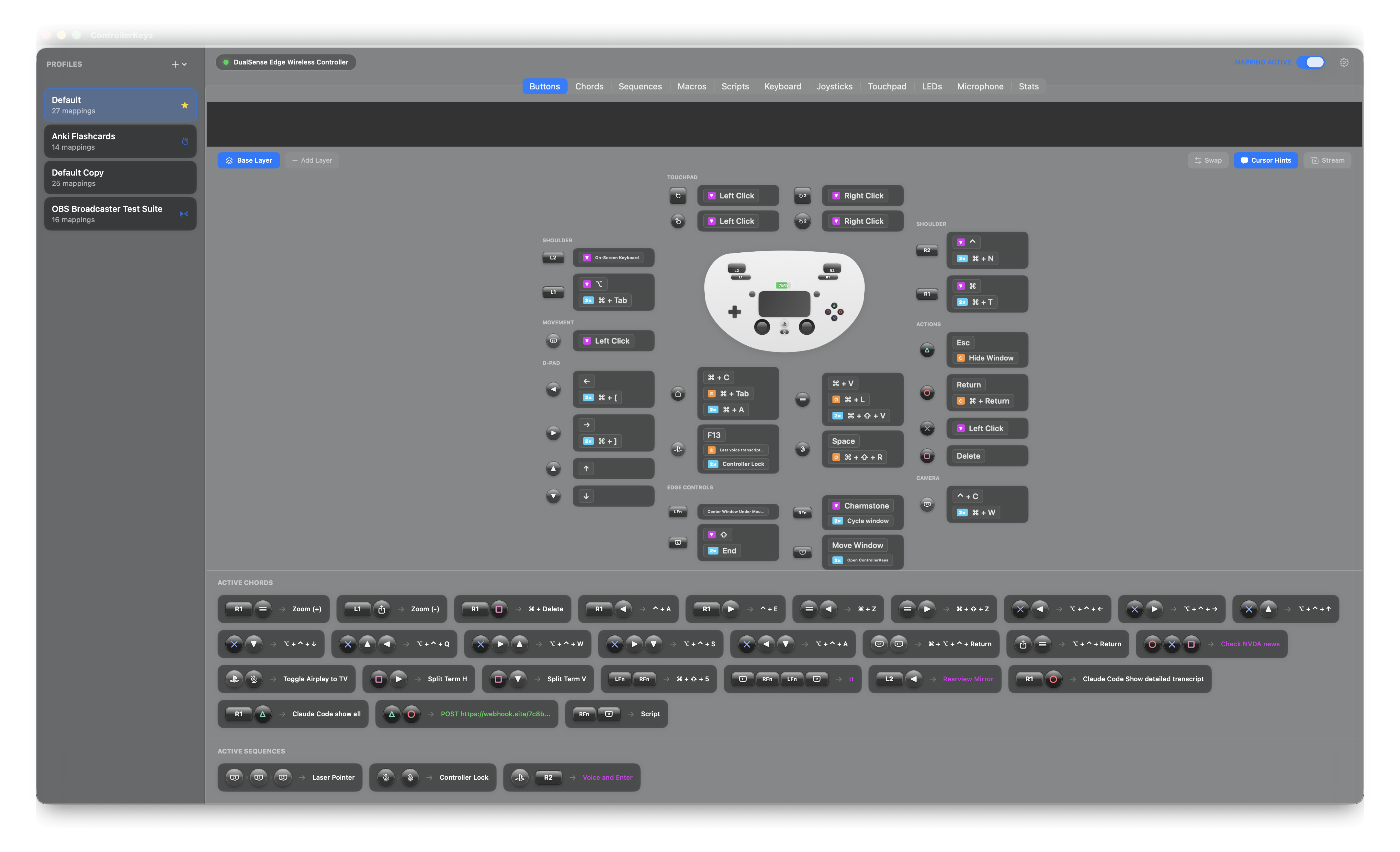
I mapped it to R1 + Circle on my PlayStation controller. Two fingers, both already resting in position. Now I use it constantly.
This is the kind of thing I keep discovering while building ControllerKeys, a Mac app that maps Bluetooth game controllers to keyboard shortcuts, mouse actions, webhooks, OBS websocket commands, app launchers, URL openers, and pretty much any other macro you can think of. The original goal was straightforward: let people use Xbox and PlayStation controllers as input devices on Mac. What I did not expect was how much better a controller is at making shortcuts accessible than a keyboard.
Locality
On a keyboard, your fingers rest on the home row. Some shortcuts are close to that position. Command-S, Command-Z, Command-C, Command-V. These live in the left hand’s natural range and most people learn them early. But as you move beyond the basics, shortcuts start requiring awkward stretches. Command-Shift-4 for screenshots. Control-O to see details. These are not hard to remember. They are hard to reach.
A game controller does not have this problem. Every button is within reach of a finger that is already resting on it. Your thumbs cover the face buttons and sticks. Your index fingers cover the bumpers and triggers. Your middle fingers can cover additional triggers or rear paddles. No finger ever has to move more than a centimeter or two.
The result is that the physical cost of any shortcut on a controller is roughly the same: low. There is no equivalent of the full-hand stretch across the keyboard. Every action is the same distance from your fingers.
This has a second-order effect on memory. When all shortcuts are easy to reach, you actually use them. When you use them, you remember them. When the physical cost is high, shortcuts fall out of your working memory because you stop reinforcing them. A controller keeps the entire set alive.
I learned this the hard way with Hammerspoon. Over the past year I have accumulated a large collection of Hammerspoon shortcuts for myself: window management, app switching, quick actions for all kinds of things. Most of them turned out to be hopeful shortcuts. I set them up, used them for a day, and then forgot they existed because the keyboard combinations to trigger them were too awkward to reinforce. I had been collecting Infinity Stones but had no gauntlet.
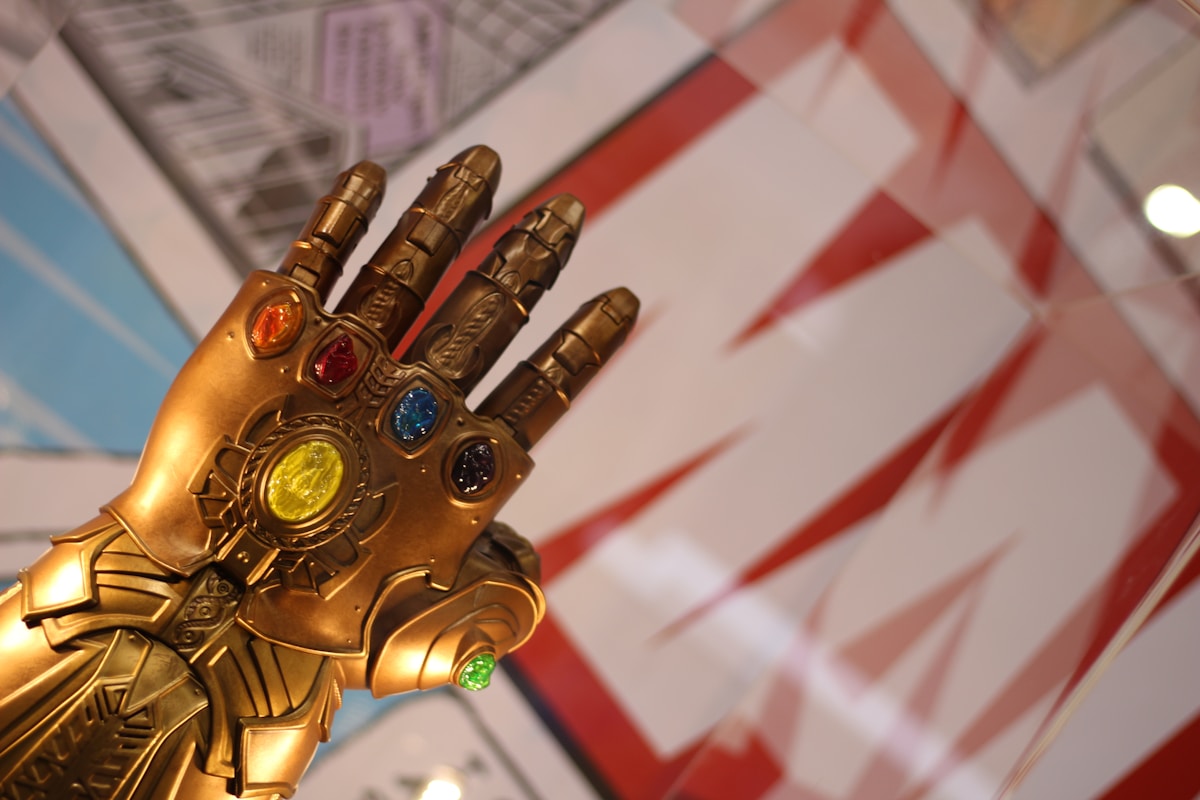
ControllerKeys turned out to be the gauntlet. Once I mapped those same Hammerspoon actions to controller buttons and chords, I started actually using them. The shortcuts I had been accumulating for months finally became part of my real workflow.
The Combinatorial Space
A standard Xbox controller has 18 pressable buttons: A, B, X, Y, two bumpers, two triggers, four d-pad directions, two stick clicks, View, Menu, Share, and the Xbox button. A DualSense Edge has around 22, adding a touchpad click, mute button, and two rear paddles.
On Mac, the Xbox button opens Game Center and the PlayStation button opens a system dialog. But you can disable this in system settings, and ControllerKeys can claim those buttons for your own mappings. Every button on the controller is available.
ControllerKeys supports several mapping modes for each button:
- Single press: tap once
- Double press: tap twice quickly
- Long hold: press and hold
That gives you three possible actions per button, or 54 on an Xbox controller and 66 on a DualSense Edge, before you get creative.
Then there are chords. A chord is two or more buttons pressed simultaneously to trigger a unique action. My Control-O mapping is a chord: R1 + Circle, pressed together. For two-button chords on n buttons, the number of combinations is n choose 2. On 18 buttons, that is 153 additional actions. On 22, it is 231.
| Xbox (18 buttons) | DualSense Edge (22 buttons) | |
|---|---|---|
| Single press | 18 | 22 |
| Double press | 18 | 22 |
| Long hold | 18 | 22 |
| 2-button chords | 153 | 231 |
| Total | 207 | 297 |
Over 200 distinct actions on a standard Xbox controller, and close to 300 on a DualSense Edge, without using any advanced features.
Some slots get consumed by the actions they represent. If you map a button to left click, you want holding it to hold the click for dragging, so the long-hold slot is gone. Double click needs to pass through as a real double click, so that slot is gone too. But even after these natural trade-offs, the space is enormous.
And this is only the beginning. ControllerKeys also supports sequences and layers.
A sequence is two or more button presses in order, up to eight steps long, like a fighting game combo. On 18 buttons, two-step sequences alone give you 324 possibilities. Three steps give 5,832. By the time you reach eight steps, the number is in the billions. You will never use most of these, but you will never run out of room either.
Layers work like modifier keys on a keyboard. You designate a button as a layer toggle. While holding it, every other button takes on a secondary mapping. A single layer roughly doubles the actions available for every button it covers. Add a second layer and you triple them.
The practical limit on usable mappings is not the system. It is your memory. The controller has more available actions than you can easily keep track of, which turns out to be exactly what you want. You want headroom, not just so you never run out of space, but so you can think in clusters of shortcuts that are intuitive to you. If you have spent years playing video games, certain button-to-action pairings just feel right. Trigger for shooting, bumper for cycling, d-pad for navigation. Having a massive combinatorial space means you can plan your mappings around associations that already exist in your muscle memory, instead of cramming actions into whatever slots are left. The more room you have, the more intuitive your layout can be, and intuitive layouts are the ones you actually remember.
Profiles as a Shortcut Knowledge Base
Every program has its own shortcuts. Claude Code, OBS, Anki, Figma, Blender. Learning them all means maintaining a set of disjoint mappings in your head, one per application. They may not even be consistent. Command-P prints in one app and opens a command palette in another.
ControllerKeys has profiles. Each profile is a complete set of button-to-action mappings. You can switch profiles manually, or you can link a profile to an app so it activates automatically when that app becomes the frontmost window.
I have a profile for Claude Code, a profile for OBS, and a default profile for general use. When I switch to OBS, my controller reconfigures itself. The button I use for “show details” in Claude Code now triggers “start recording” in OBS. I do not have to remember which keyboard shortcut does what in which app. The controller remembers for me.
The community has started building profiles too. There is an Anki flashcards profile that maps controller buttons to Anki’s review actions, linked to the Anki app so it activates automatically when Anki is in the foreground. This is popular with people who used Enjoyable on Mac, which has not been updated in years.
Profiles are saved as plain-text JSON files. You can edit them by hand, version them with git, share them with others, or hand them to an AI and ask it to design the optimal controller layout for your workflow. The configuration is portable and inspectable in a way that hardware macro pads are not.
This is a subtly important property. Your profiles are a durable record of your keyboard shortcuts. Setting up a workflow is work, and that work should not disappear when you switch devices or reset your system. Plain-text, version-controlled config files make your shortcut knowledge permanent.
Extending Through Hammerspoon
ControllerKeys maps buttons to keyboard shortcuts. Hammerspoon maps keyboard shortcuts to anything your Mac can do: window management, application launching, system commands, custom Lua scripts. Chain them together and a controller button can do anything.
The setup is simple. In Hammerspoon, bind an action to a hotkey. In ControllerKeys, map a controller button to that hotkey. Press the button, ControllerKeys sends the keystroke, Hammerspoon intercepts it, and the action fires. A controller button can now open a specific URL, resize windows to a grid, toggle dark mode, run a shell script, post to a webhook, or anything else you can write in Lua.
Two of my favorites: I have the PlayStation button plus the mute button as a chord that toggles AirPlay to my TV. One two-finger press and my Mac is on the big screen. Another chord triggers a Hammerspoon script that selects the text inside the nearest quotes, brackets, or parentheses and highlights it, ready to copy or delete. If you have used vim, this is the equivalent of ci" or ci(, but available in any text field on your Mac. These are not actions that have convenient keyboard shortcuts. They are custom behaviors that only exist because Hammerspoon can script them and ControllerKeys can trigger them.
As I mentioned earlier, I had accumulated dozens of these Hammerspoon hotkeys over the past year that I never actually used because the keyboard shortcuts to trigger them were too uncomfortable. The combinatorial space on a controller is what finally unlocked them. You have enough buttons, chords, and sequences to dedicate entire sets to Hammerspoon actions without running out of room for regular shortcuts.
Optimizing with Information Theory
I recently added a stats page to ControllerKeys that tracks your button press frequencies. On its own this is interesting, a way to see which actions you rely on most. But it also enables something I have been wanting to build: information-theoretic optimization of your button layout.
The idea comes from ShannonMax, a project built for Emacs by Sam Straus.[1] ShannonMax logs every command you run in Emacs, measures how frequently you use each one, and tells you whether your keybindings are optimally assigned.
The principle is Shannon’s source coding theorem, the same idea behind Huffman coding and Morse code. In an optimal encoding, the cost of triggering an action should be inversely proportional to how often you use it. Frequent actions get cheap triggers. Rare actions can afford expensive ones.
In Morse code, the letter E is a single dot because it is the most common letter in English. The letter Q is dash-dash-dot-dash. Nobody complains, because you rarely need Q.
Controller mappings work the same way. A single button press is the cheapest action: one press, instant result. A chord costs a bit more: two buttons, slightly more coordination. A sequence costs more still: multiple presses in order, time and attention. If your most-used action is mapped to a chord while a rarely-used action occupies a single-press slot, you are spending unnecessary effort on every invocation.
ShannonMax computes the theoretically optimal cost for each command using the information content of its frequency:
optimal_cost = -log2(frequency) / log2(alphabet_size)This divides the information content of the command by the information capacity of each button press. If a command’s actual cost is higher than its theoretical optimum, the binding is too expensive and you should shorten it. If it is lower, that prime slot could be freed up for something you use more.
ControllerKeys applies this same analysis to your usage data. When it detects a frequently-used action on an expensive input and a rarely-used action on a cheap one, it suggests you swap them. Over time, your profile converges toward an efficient layout where the effort you spend is proportional to the value you get from each press.
You do not need to think about any of this when you first set up your controller. Start with whatever layout feels intuitive. But after a few weeks of usage data, the stats page can tell you exactly where you are wasting effort, and what to swap to fix it.
The Controller as an Interface
There is something counterintuitive about using a game controller for productivity. Controllers are for games. Keyboards are for work.
But this distinction is convention, not capability. A keyboard is a large, flat grid of identical keys spread across 30 centimeters. A controller is a small, ergonomic device with buttons differentiated by position, size, shape, and feel. You can tell which button you are pressing without looking. You might not be able to say the same for all the keys on a keyboard.
And a controller goes places a keyboard cannot. I have used mine in VR, operating my Mac through a Meta Quest 3 without ever seeing my hands. I have used it to walk around a room and present with my Mac connected to a big screen, maintaining full control of my computer while standing ten feet away from it. I have used it under blankets on the couch, fully reclined, running shortcuts with zero visual attention on my input device. These are not edge cases. They are what happens when your input device does not require you to look at it.
The game industry spent decades optimizing controllers for rapid, eyes-free input under pressure. Turns out that is exactly what you want for keyboard shortcuts too.
Citations
[1] ShannonMax — Optimize your Emacs keybindings using information theory — GitHub ↩
Control-O in Claude Code shows the full details of what the agent is doing. I know this shortcut exists. I have known for weeks. But I almost never use it, because hitting Control-O on a keyboard requires stretching my left hand all the way across to the right side. It is physically uncomfortable. The shortcut might as well not exist.
I mapped it to R1 + Circle on my PlayStation controller. Two fingers, both already resting in position. Now I use it constantly.
This is the kind of thing I keep discovering while building [ControllerKeys](https://kevintang.xyz/apps/controller-keys), a Mac app that maps Bluetooth game controllers to keyboard shortcuts, mouse actions, webhooks, OBS websocket commands, app launchers, URL openers, and pretty much any other macro you can think of. The original goal was straightforward: let people use Xbox and PlayStation controllers as input devices on Mac. What I did not expect was how much better a controller is at making shortcuts accessible than a keyboard.

## Locality
On a keyboard, your fingers rest on the home row. Some shortcuts are close to that position. Command-S, Command-Z, Command-C, Command-V. These live in the left hand's natural range and most people learn them early. But as you move beyond the basics, shortcuts start requiring awkward stretches. Command-Shift-4 for screenshots. Control-O to see details. These are not hard to remember. They are hard to reach.
A game controller does not have this problem. Every button is within reach of a finger that is already resting on it. Your thumbs cover the face buttons and sticks. Your index fingers cover the bumpers and triggers. Your middle fingers can cover additional triggers or rear paddles. No finger ever has to move more than a centimeter or two.
The result is that the physical cost of any shortcut on a controller is roughly the same: low. There is no equivalent of the full-hand stretch across the keyboard. Every action is the same distance from your fingers.
This has a second-order effect on memory. When all shortcuts are easy to reach, you actually use them. When you use them, you remember them. When the physical cost is high, shortcuts fall out of your working memory because you stop reinforcing them. A controller keeps the entire set alive.
I learned this the hard way with Hammerspoon. Over the past year I have accumulated a large collection of Hammerspoon shortcuts for myself: window management, app switching, quick actions for all kinds of things. Most of them turned out to be hopeful shortcuts. I set them up, used them for a day, and then forgot they existed because the keyboard combinations to trigger them were too awkward to reinforce. I had been collecting Infinity Stones but had no gauntlet.

ControllerKeys turned out to be the gauntlet. Once I mapped those same Hammerspoon actions to controller buttons and chords, I started actually using them. The shortcuts I had been accumulating for months finally became part of my real workflow.
## The Combinatorial Space
A standard Xbox controller has 18 pressable buttons: A, B, X, Y, two bumpers, two triggers, four d-pad directions, two stick clicks, View, Menu, Share, and the Xbox button. A DualSense Edge has around 22, adding a touchpad click, mute button, and two rear paddles.
On Mac, the Xbox button opens Game Center and the PlayStation button opens a system dialog. But you can disable this in system settings, and ControllerKeys can claim those buttons for your own mappings. Every button on the controller is available.
ControllerKeys supports several mapping modes for each button:
- Single press: tap once
- Double press: tap twice quickly
- Long hold: press and hold
That gives you three possible actions per button, or 54 on an Xbox controller and 66 on a DualSense Edge, before you get creative.
Then there are chords. A chord is two or more buttons pressed simultaneously to trigger a unique action. My Control-O mapping is a chord: R1 + Circle, pressed together. For two-button chords on n buttons, the number of combinations is n choose 2. On 18 buttons, that is 153 additional actions. On 22, it is 231.
| | Xbox (18 buttons) | DualSense Edge (22 buttons) |
|---|---|---|
| Single press | 18 | 22 |
| Double press | 18 | 22 |
| Long hold | 18 | 22 |
| 2-button chords | 153 | 231 |
| Total | 207 | 297 |
Over 200 distinct actions on a standard Xbox controller, and close to 300 on a DualSense Edge, without using any advanced features.
Some slots get consumed by the actions they represent. If you map a button to left click, you want holding it to hold the click for dragging, so the long-hold slot is gone. Double click needs to pass through as a real double click, so that slot is gone too. But even after these natural trade-offs, the space is enormous.
And this is only the beginning. ControllerKeys also supports sequences and layers.
A sequence is two or more button presses in order, up to eight steps long, like a fighting game combo. On 18 buttons, two-step sequences alone give you 324 possibilities. Three steps give 5,832. By the time you reach eight steps, the number is in the billions. You will never use most of these, but you will never run out of room either.
Layers work like modifier keys on a keyboard. You designate a button as a layer toggle. While holding it, every other button takes on a secondary mapping. A single layer roughly doubles the actions available for every button it covers. Add a second layer and you triple them.
The practical limit on usable mappings is not the system. It is your memory. The controller has more available actions than you can easily keep track of, which turns out to be exactly what you want. You want headroom, not just so you never run out of space, but so you can think in clusters of shortcuts that are intuitive to you. If you have spent years playing video games, certain button-to-action pairings just feel right. Trigger for shooting, bumper for cycling, d-pad for navigation. Having a massive combinatorial space means you can plan your mappings around associations that already exist in your muscle memory, instead of cramming actions into whatever slots are left. The more room you have, the more intuitive your layout can be, and intuitive layouts are the ones you actually remember.
## Profiles as a Shortcut Knowledge Base
Every program has its own shortcuts. Claude Code, OBS, Anki, Figma, Blender. Learning them all means maintaining a set of disjoint mappings in your head, one per application. They may not even be consistent. Command-P prints in one app and opens a command palette in another.
ControllerKeys has profiles. Each profile is a complete set of button-to-action mappings. You can switch profiles manually, or you can link a profile to an app so it activates automatically when that app becomes the frontmost window.
I have a profile for Claude Code, a profile for OBS, and a default profile for general use. When I switch to OBS, my controller reconfigures itself. The button I use for "show details" in Claude Code now triggers "start recording" in OBS. I do not have to remember which keyboard shortcut does what in which app. The controller remembers for me.
The community has started building profiles too. There is an Anki flashcards profile that maps controller buttons to Anki's review actions, linked to the Anki app so it activates automatically when Anki is in the foreground. This is popular with people who used Enjoyable on Mac, which has not been updated in years.
Profiles are saved as plain-text JSON files. You can edit them by hand, version them with git, share them with others, or hand them to an AI and ask it to design the optimal controller layout for your workflow. The configuration is portable and inspectable in a way that hardware macro pads are not.
This is a subtly important property. Your profiles are a durable record of your keyboard shortcuts. Setting up a workflow is work, and that work should not disappear when you switch devices or reset your system. Plain-text, version-controlled config files make your shortcut knowledge permanent.
## Extending Through Hammerspoon
ControllerKeys maps buttons to keyboard shortcuts. Hammerspoon maps keyboard shortcuts to anything your Mac can do: window management, application launching, system commands, custom Lua scripts. Chain them together and a controller button can do anything.
The setup is simple. In Hammerspoon, bind an action to a hotkey. In ControllerKeys, map a controller button to that hotkey. Press the button, ControllerKeys sends the keystroke, Hammerspoon intercepts it, and the action fires. A controller button can now open a specific URL, resize windows to a grid, toggle dark mode, run a shell script, post to a webhook, or anything else you can write in Lua.
Two of my favorites: I have the PlayStation button plus the mute button as a chord that toggles AirPlay to my TV. One two-finger press and my Mac is on the big screen. Another chord triggers a Hammerspoon script that selects the text inside the nearest quotes, brackets, or parentheses and highlights it, ready to copy or delete. If you have used vim, this is the equivalent of `ci"` or `ci(`, but available in any text field on your Mac. These are not actions that have convenient keyboard shortcuts. They are custom behaviors that only exist because Hammerspoon can script them and ControllerKeys can trigger them.
As I mentioned earlier, I had accumulated dozens of these Hammerspoon hotkeys over the past year that I never actually used because the keyboard shortcuts to trigger them were too uncomfortable. The combinatorial space on a controller is what finally unlocked them. You have enough buttons, chords, and sequences to dedicate entire sets to Hammerspoon actions without running out of room for regular shortcuts.
## Optimizing with Information Theory
I recently added a stats page to ControllerKeys that tracks your button press frequencies. On its own this is interesting, a way to see which actions you rely on most. But it also enables something I have been wanting to build: information-theoretic optimization of your button layout.
The idea comes from ShannonMax, a project built for Emacs by Sam Straus.<sup><a href="#cite-1" id="ref-1">[1]</a></sup> ShannonMax logs every command you run in Emacs, measures how frequently you use each one, and tells you whether your keybindings are optimally assigned.
The principle is Shannon's source coding theorem, the same idea behind Huffman coding and Morse code. In an optimal encoding, the cost of triggering an action should be inversely proportional to how often you use it. Frequent actions get cheap triggers. Rare actions can afford expensive ones.
In Morse code, the letter E is a single dot because it is the most common letter in English. The letter Q is dash-dash-dot-dash. Nobody complains, because you rarely need Q.
Controller mappings work the same way. A single button press is the cheapest action: one press, instant result. A chord costs a bit more: two buttons, slightly more coordination. A sequence costs more still: multiple presses in order, time and attention. If your most-used action is mapped to a chord while a rarely-used action occupies a single-press slot, you are spending unnecessary effort on every invocation.
ShannonMax computes the theoretically optimal cost for each command using the information content of its frequency:
```
optimal_cost = -log2(frequency) / log2(alphabet_size)
```
This divides the information content of the command by the information capacity of each button press. If a command's actual cost is higher than its theoretical optimum, the binding is too expensive and you should shorten it. If it is lower, that prime slot could be freed up for something you use more.
ControllerKeys applies this same analysis to your usage data. When it detects a frequently-used action on an expensive input and a rarely-used action on a cheap one, it suggests you swap them. Over time, your profile converges toward an efficient layout where the effort you spend is proportional to the value you get from each press.
You do not need to think about any of this when you first set up your controller. Start with whatever layout feels intuitive. But after a few weeks of usage data, the stats page can tell you exactly where you are wasting effort, and what to swap to fix it.
## The Controller as an Interface
There is something counterintuitive about using a game controller for productivity. Controllers are for games. Keyboards are for work.
But this distinction is convention, not capability. A keyboard is a large, flat grid of identical keys spread across 30 centimeters. A controller is a small, ergonomic device with buttons differentiated by position, size, shape, and feel. You can tell which button you are pressing without looking. You might not be able to say the same for all the keys on a keyboard.
And a controller goes places a keyboard cannot. I have used mine [in VR](https://youtu.be/lGI46UgBhgo?si=sP17bbmBwAv1yaVz), operating my Mac through a Meta Quest 3 without ever seeing my hands. I have used it to [walk around a room and present](https://youtu.be/ArJGO_rlNp0?si=9T29ehymEkXjJcXm) with my Mac connected to a big screen, maintaining full control of my computer while standing ten feet away from it. I have used it under blankets on the couch, fully reclined, running shortcuts with zero visual attention on my input device. These are not edge cases. They are what happens when your input device does not require you to look at it.
The game industry spent decades optimizing controllers for rapid, eyes-free input under pressure. Turns out that is exactly what you want for keyboard shortcuts too.
## Citations
<p id="cite-1">[1] <a href="https://github.com/sstraust/shannonmax" target="_blank" rel="noopener noreferrer">ShannonMax — Optimize your Emacs keybindings using information theory</a> — GitHub <a href="#ref-1">↩</a></p>