🕺 I Scroll Too Much, So I Built an Elevator
Scroll Elevator is a tiny Mac menu-bar app I built in an afternoon. When you scroll, two little elevator buttons appear right at your cursor—click to jump to the top or bottom of whatever you’re in, or hold to cruise. I made it because I run a grid of AI coding agents in terminals all day, and getting to the top or bottom of a Mac window is weirdly inconsistent. It’s $4.99 one-time, or free if you build it from source.
Most of my day now looks like a wall of terminals. I run several AI coding agents at once—each in its own window, each churning through a task—and my job has quietly become reading. Reading what the agent decided, what it changed, what it printed at me. And reading agent output means scrolling. Constantly. Slam to the bottom to catch the latest tool call, scroll back up to re-read the diff it just dropped, jump down again to see if the tests passed.
Here’s the thing I kept tripping over: my hand is already on the trackpad, and there’s no good way to get to the top or bottom from there. In a terminal, ⌘↑ doesn’t go to the top—it jumps to the previous command. To reach the very top of the scrollback you want ⌘Home, except my laptop doesn’t have a Home key, so that’s Fn+Left, which is a two-handed contortion for something I do fifty times an hour. So I’d reach for the scrollbar, drag it all the way up, drag it all the way back down. Over and over.
It’s a small annoyance. But it’s the compounding kind—the tax you pay a hundred times a day and stop noticing you’re paying. I’ve written before about what a mess jumping to the top or bottom of a Mac app actually is: ⌘↑ opens the enclosing folder in Finder, MacBooks dropped the Home and End keys, and every app made its own individually-reasonable choice that adds up to chaos. You adapt. But “you adapt” is the sentence I tend to say right before I build something.
The idea, and the afternoon
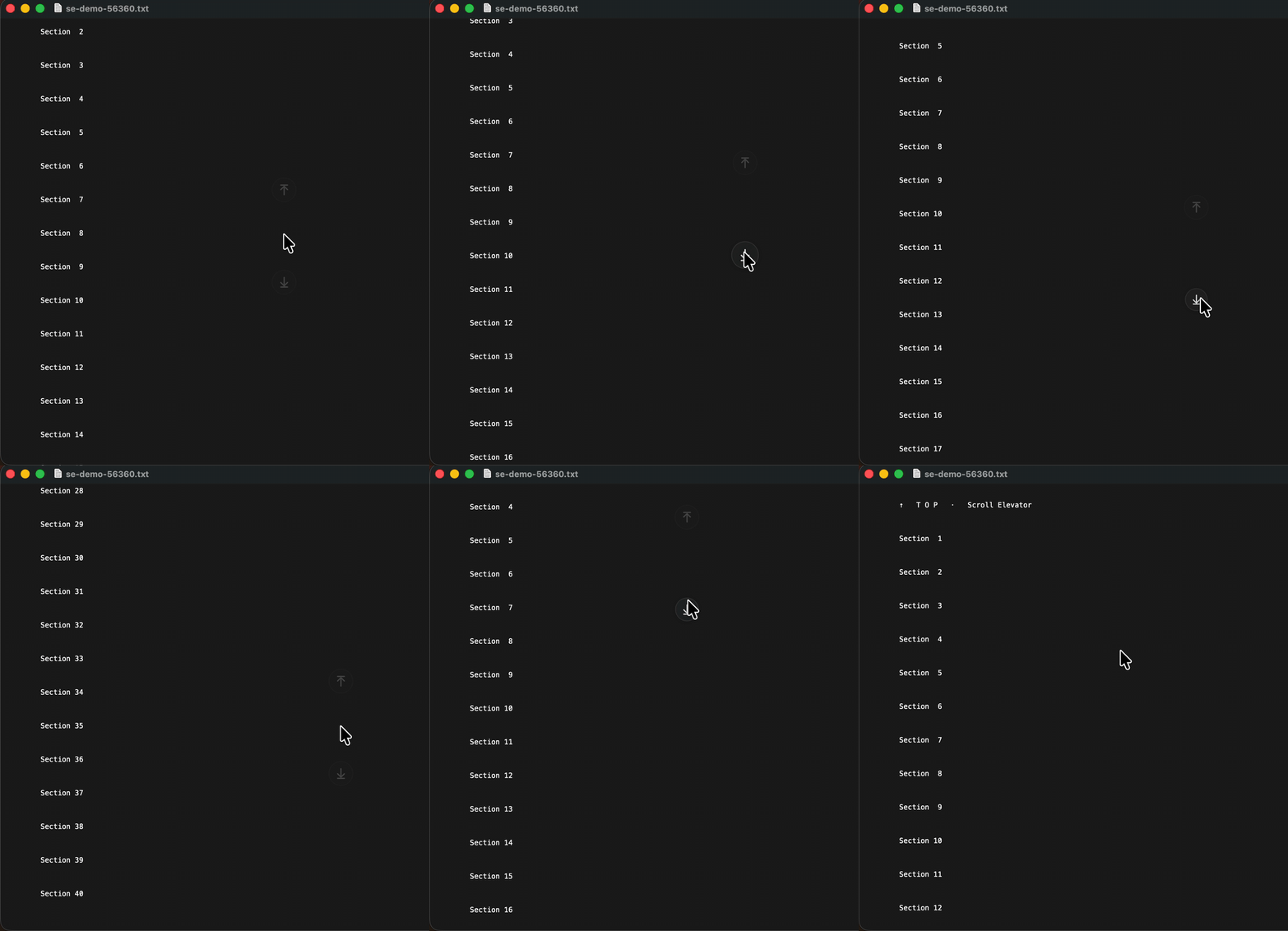
I dictated the idea into my phone one morning in June. It’s almost embarrassing in how direct it is: when I scroll, put two buttons right at my cursor—one to jump to the top, one to the bottom. Click one, the window leaps there. Move the mouse away, they fade. That’s the whole product.
I built it that same afternoon. There was a working MVP by lunch and hold-to-cruise by mid-afternoon. It helped that I’ve made a few of these little macOS utilities now, so I have a skeleton I reuse—XcodeGen project, a Makefile that builds and signs and drops it in /Applications, a menu-bar app that stays out of the Dock. The novel part was never the plumbing. It was getting the feel right, which is a different and much harder problem.
The feeling is the product
The scary version of this app shows two buttons every single time you touch the scroll wheel. That’s not a tool, that’s a gnat. So most of the work went into making it something you can forget exists until the exact moment you want it.
A few decisions carry the whole thing:
- It only shows up after a real scroll burst, not on the first stray tick. Then it’s translucent, sitting there at maybe 30% opacity, and only goes solid when you actually hover a button.
- It never steals focus. The overlay is a non-activating, click-through panel, so a scroll gesture never accidentally latches onto it, and the gap between the two buttons passes your clicks straight through to whatever’s underneath. Only the two little circles are live.
- It’s easy to dismiss and hard to dismiss by accident. The buttons live inside a tall, narrow corridor around your cursor—drift a little and they stay, leave the corridor and they’re gone.
The decision I’m proudest of is invisible: instead of faking a keystroke and hoping, Scroll Elevator drives the app’s own Accessibility scrollbar—it finds the scroll view under your pointer and sets its scrollbar to the top or bottom directly. That’s why it behaves the same in Chrome, Finder, Preview, Mail, Xcode, and my terminals, and why a background window can scroll without coming forward and stealing my focus. No keystroke would give me all three of those at once.
The parts that didn’t work
I don’t want to make this sound cleaner than it was. My first attempt at “hold the button to keep going” sent PageUp and PageDown keystrokes—which promptly broke in the exact place I cared about most, because terminals interpret any keypress as “snap the scrollback back to the prompt.” So I rebuilt paging as synthetic scroll-wheel events. Then I used it for a day and ripped paging out entirely, because a press-that-sometimes-pages-and-sometimes-jumps is confusing. A press should be a press. What I landed on instead was hold-to-cruise: tap to jump, or hold and the page glides in that direction, faster the longer you hold.
My favorite bug was that hold-to-cruise, for a while, didn’t cruise at all. The jump worked, the hold registered, and then—nothing glided. The culprit was that I’d scheduled the cruise timer in the default run-loop mode, which doesn’t fire while a mouse button is held down. That’s event-tracking mode, which is precisely when cruising happens. One line to move the timers to .common and it came alive. The kind of bug that’s invisible until you know how macOS run loops work, and obvious the second you do.
Where it actually earns its keep
The AI-agent terminals are still the place I feel it most—jump to the bottom for the latest output, jump to the top to re-read the whole run, hold to cruise through a 500-line file the agent decided to print in full. But once it existed, it turned out to be useful everywhere I live in long things:
- Long GitHub threads and PR diffs—the 400-comment issue, the diff someone clearly generated with a for-loop.
- Log files, where the interesting part is either the very top or the very bottom and never the middle.
- Long PDFs and docs in Preview, where dragging that tiny scrollbar thumb is its own small misery.
- Chat histories—Slack, Discord, Messages—when you want the start of a conversation or the newest message and nothing in between.
Is a dedicated app for “scroll to the top” overkill? Honestly, maybe. I asked myself that the whole time I was building it. But I do this something like fifty times a day, and I’d rather have one button under the cursor my hand is already on than a flowchart of per-app keyboard shortcuts living in my head. If you’ve ever hit ⌘↑ in Finder and watched it jump up a folder instead, you know the exact feeling that made me build this.
Scroll Elevator is $4.99, one-time, no subscription, signed and notarized, and it never touches the network—nothing leaves your Mac. And if you’d rather not pay, the whole thing is open source and you can build it yourself for free. The site even runs a live in-browser clone of the overlay, so you can try the mechanic before you decide.
*Scroll Elevator is a tiny Mac menu-bar app I built in an afternoon. When you scroll, two little elevator buttons appear right at your cursor—click to jump to the top or bottom of whatever you're in, or hold to cruise. I made it because I run a grid of AI coding agents in terminals all day, and getting to the top or bottom of a Mac window is weirdly inconsistent. It's $4.99 one-time, or free if you build it from source.*
<p align="center"><img src="/images/scroll-elevator-icon.png" alt="The Scroll Elevator app icon: an amber-lit up-triangle button above a silver down-triangle button, styled like an elevator call panel" width="150" /></p>
Most of my day now looks like a wall of terminals. I run several AI coding agents at once—each in its own window, each churning through a task—and my job has quietly become *reading*. Reading what the agent decided, what it changed, what it printed at me. And reading agent output means scrolling. Constantly. Slam to the bottom to catch the latest tool call, scroll back up to re-read the diff it just dropped, jump down again to see if the tests passed.
Here's the thing I kept tripping over: my hand is already on the trackpad, and there's no good way to get to the top or bottom from there. In a terminal, ⌘↑ doesn't go to the top—it jumps to the previous command. To reach the very top of the scrollback you want ⌘Home, except my laptop doesn't have a Home key, so that's Fn+Left, which is a two-handed contortion for something I do fifty times an hour. So I'd reach for the scrollbar, drag it all the way up, drag it all the way back down. Over and over.
It's a small annoyance. But it's the compounding kind—the tax you pay a hundred times a day and stop noticing you're paying. I've written before about [what a mess jumping to the top or bottom of a Mac app actually is](/jump-to-the-top-or-bottom-of-any-mac-app.md): ⌘↑ opens the enclosing folder in Finder, MacBooks dropped the Home and End keys, and every app made its own individually-reasonable choice that adds up to chaos. You adapt. But "you adapt" is the sentence I tend to say right before I build something.
## The idea, and the afternoon
I dictated the idea into my phone one morning in June. It's almost embarrassing in how direct it is: *when I scroll, put two buttons right at my cursor—one to jump to the top, one to the bottom.* Click one, the window leaps there. Move the mouse away, they fade. That's the whole product.

I built it that same afternoon. There was a working MVP by lunch and hold-to-cruise by mid-afternoon. It helped that I've made a few of these little macOS utilities now, so I have a skeleton I reuse—XcodeGen project, a Makefile that builds and signs and drops it in `/Applications`, a menu-bar app that stays out of the Dock. The novel part was never the plumbing. It was getting the *feel* right, which is a different and much harder problem.
## The feeling is the product
The scary version of this app shows two buttons every single time you touch the scroll wheel. That's not a tool, that's a gnat. So most of the work went into making it something you can forget exists until the exact moment you want it.
A few decisions carry the whole thing:
- **It only shows up after a real scroll burst**, not on the first stray tick. Then it's translucent, sitting there at maybe 30% opacity, and only goes solid when you actually hover a button.
- **It never steals focus.** The overlay is a non-activating, click-through panel, so a scroll gesture never accidentally latches onto it, and the gap between the two buttons passes your clicks straight through to whatever's underneath. Only the two little circles are live.
- **It's easy to dismiss and hard to dismiss by accident.** The buttons live inside a tall, narrow corridor around your cursor—drift a little and they stay, leave the corridor and they're gone.
The decision I'm proudest of is invisible: instead of faking a keystroke and hoping, Scroll Elevator drives the app's own **Accessibility scrollbar**—it finds the scroll view under your pointer and sets its scrollbar to the top or bottom directly. That's why it behaves the same in Chrome, Finder, Preview, Mail, Xcode, and my terminals, and why a background window can scroll without coming forward and stealing my focus. No keystroke would give me all three of those at once.
## The parts that didn't work
I don't want to make this sound cleaner than it was. My first attempt at "hold the button to keep going" sent PageUp and PageDown keystrokes—which promptly broke in the exact place I cared about most, because terminals interpret any keypress as "snap the scrollback back to the prompt." So I rebuilt paging as synthetic scroll-wheel events. Then I used it for a day and ripped paging out entirely, because a press-that-sometimes-pages-and-sometimes-jumps is confusing. A press should be a press. What I landed on instead was hold-to-cruise: tap to jump, or hold and the page glides in that direction, faster the longer you hold.
My favorite bug was that hold-to-cruise, for a while, didn't cruise at all. The jump worked, the hold registered, and then—nothing glided. The culprit was that I'd scheduled the cruise timer in the default run-loop mode, which doesn't fire while a mouse button is held down. That's *event-tracking* mode, which is precisely when cruising happens. One line to move the timers to `.common` and it came alive. The kind of bug that's invisible until you know how macOS run loops work, and obvious the second you do.
## Where it actually earns its keep
The AI-agent terminals are still the place I feel it most—jump to the bottom for the latest output, jump to the top to re-read the whole run, hold to cruise through a 500-line file the agent decided to print in full. But once it existed, it turned out to be useful everywhere I live in long things:

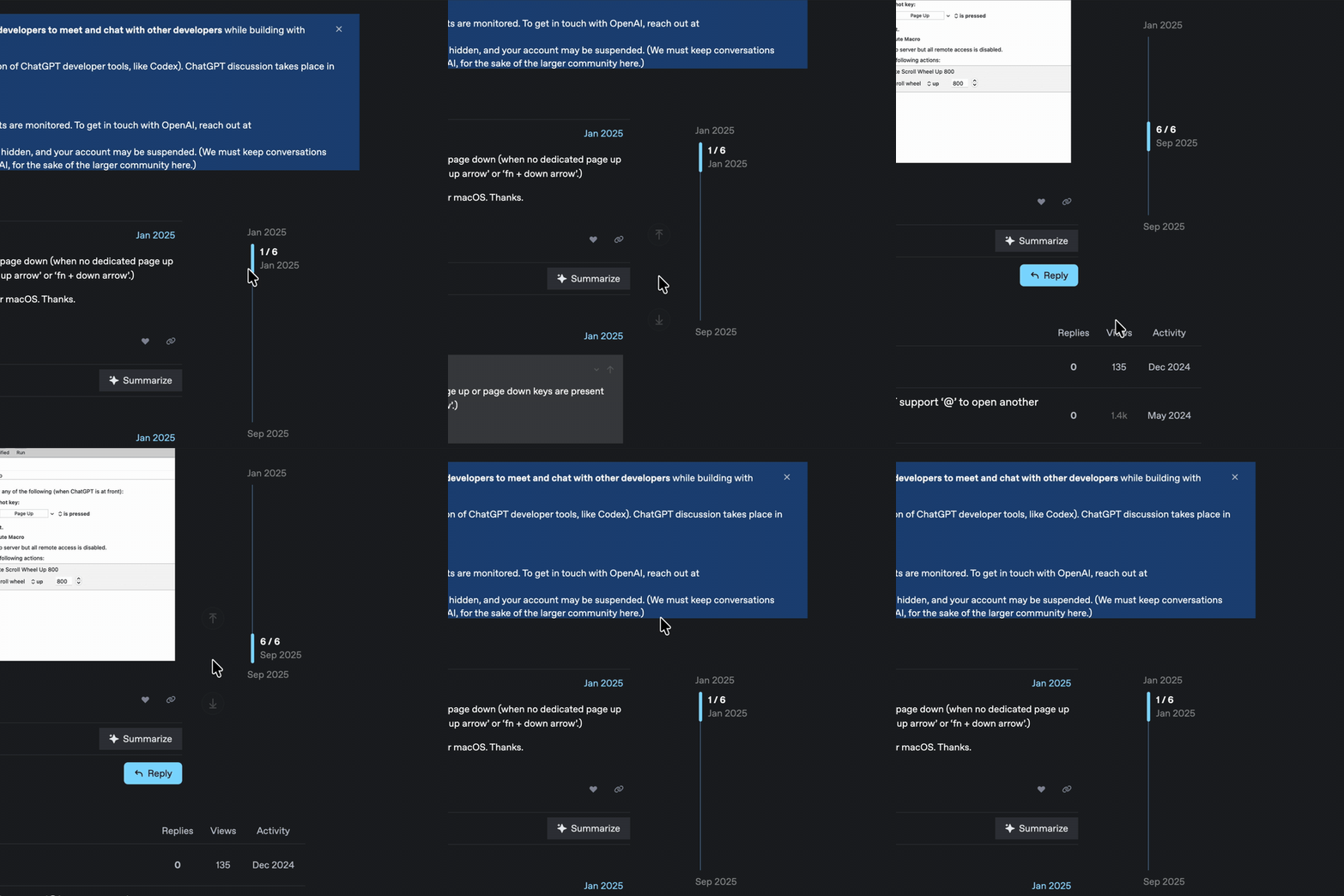
- **Long GitHub threads and PR diffs**—the 400-comment issue, the diff someone clearly generated with a for-loop.
- **Log files**, where the interesting part is either the very top or the very bottom and never the middle.
- **Long PDFs and docs** in Preview, where dragging that tiny scrollbar thumb is its own small misery.
- **Chat histories**—Slack, Discord, Messages—when you want the start of a conversation or the newest message and nothing in between.
Is a dedicated app for "scroll to the top" overkill? Honestly, maybe. I asked myself that the whole time I was building it. But I do this something like fifty times a day, and I'd rather have one button under the cursor my hand is already on than a flowchart of per-app keyboard shortcuts living in my head. If you've ever hit ⌘↑ in Finder and watched it jump up a folder instead, you know the exact feeling that made me build this.
[Scroll Elevator](https://kevintang.xyz/apps/scroll-elevator/) is $4.99, one-time, no subscription, signed and notarized, and it never touches the network—nothing leaves your Mac. And if you'd rather not pay, the [whole thing is open source](https://github.com/NSEvent/scroll-elevator) and you can build it yourself for free. The site even runs a live in-browser clone of the overlay, so you can try the mechanic before you decide.